
To make a superbill from CSV, export your appointments or billing transactions from your EHR or spreadsheet, click Import CSV in the generator toolbar, and confirm how each column was matched. Then load a single client into the editor, or use Print all to produce one superbill per client in a single print job you can save as a PDF. The file is parsed entirely in your browser and is never uploaded.
This guide walks through the whole process: preparing the export, which columns matter, an example file, reviewing the mappings, printing, and fixing the most common import problems.
When does importing a CSV make sense?
Many EHRs and practice-management systems can generate superbills on their own. If yours does and you’re happy with the result, you may not need this. Importing a CSV is useful when:
- You don’t use an EHR, and you track sessions in a spreadsheet.
- You need a different layout, such as one that includes fields your system leaves off, or a cleaner one-page US Letter format.
- You want to batch them. At the end of each month, you can turn one export into superbills for every out-of-network client at once instead of building each by hand.
Monthly superbills are a common rhythm for private-pay practices. Clients can submit them for insurance reimbursement or use them as documentation for HSA and FSA claims.
Before you start: save your provider details
Print all uses your saved provider details on every superbill, so fill those in first. In the generator, enter your practice name, provider name, credentials, address, phone, email, NPI, Tax ID or EIN, and license number. The NPI field runs a check-digit validation, which catches most typos.
If you haven’t set up the generator yet, a profession template is a quick start. The therapist superbill template comes preloaded with common psychotherapy codes, and other professions have their own.
Step 1: Export appointments from your EHR or spreadsheet
Look in your EHR’s reports or billing area for an export of appointments or billing transactions to CSV. Menu names vary between systems and change over time, so search your system’s help docs for “export” or “CSV” if you can’t find it.
When you export:
- Filter by date range, such as last month, so the file contains only the sessions you want on this batch of superbills.
- Include as many billing columns as your system offers: client name, date of birth, date of service, CPT or service code, modifier, place of service, diagnosis codes, units, fee, and amount paid. Insurance carrier, member ID, and group number are helpful too.
- Filter to the right clients, if possible. If only some clients need superbills, exclude in-network clients before exporting, or delete their rows in a spreadsheet afterward.
If you keep records in a spreadsheet, save or download the sheet as CSV. Tab-separated (.tsv) files work too.
Which columns does the importer recognize?
Columns are matched automatically by header name. Capitalization and punctuation are ignored, so “Date of Service,” “date_of_service,” and “DATE OF SERVICE” all match.
| Superbill field | Recognized column headers |
|---|---|
| Date of service | Date of Service, DOS, Service Date, Appointment Date, Session Date, Date |
| CPT code | CPT, CPT Code, Service Code, Procedure Code, Billing Code, HCPCS, Code |
| Modifier | Modifier, Modifiers, Mod |
| Description | Description, Service, Service Description, Service Name |
| Place of service | POS, Place of Service |
| Diagnosis codes | Diagnosis, Diagnosis Codes, ICD-10, ICD10, Dx, Dx Code |
| Diagnosis pointer | Dx Pointer, Diagnosis Pointer |
| Units | Units, Qty, Quantity |
| Fee | Fee, Rate, Charge, Charges, Billed Amount, Amount, Total |
| Amount paid | Paid, Amount Paid, Client Paid, Patient Paid, Payment |
| Client | Client, Client Name, Patient, Patient Name, or separate First Name and Last Name |
| Date of birth | DOB, Date of Birth, Birth Date |
| Insurance carrier | Insurance, Insurance Carrier, Payer, Carrier |
| Member ID | Member ID, Insurance ID, Subscriber ID, Policy Number |
| Group number | Group, Group Number |
At a minimum, a useful superbill needs a client name, date, CPT code, and fee on each row. Diagnosis codes, place of service, and insurance details are what make it complete enough for an insurer. Our checklist of what to include on a superbill explains why each field matters.
Example CSV file
The easiest way to get the format right is the Download CSV template button, which gives you a ready-made file with these columns. Here’s what a filled-in file might look like, using fictional clients and hypothetical fees:
Client Name,Date of Birth,Insurance Carrier,Member ID,Group Number,Date of Service,CPT Code,Modifier,Description,Place of Service,Diagnosis Codes,Units,Fee,Amount Paid
Jamie Rivera,1988-04-12,Example Health PPO,XHP123456789,G-00451,2026-10-01,90791,,Diagnostic evaluation,11,F41.1,1,225.00,225.00
Jamie Rivera,1988-04-12,Example Health PPO,XHP123456789,G-00451,2026-10-08,90837,,Psychotherapy 60 min,11,F41.1,1,180.00,180.00
Jamie Rivera,1988-04-12,Example Health PPO,XHP123456789,G-00451,2026-10-15,90837,95,Psychotherapy 60 min telehealth,10,F41.1,1,180.00,180.00
Jamie Rivera,1988-04-12,Example Health PPO,XHP123456789,G-00451,2026-10-22,90837,,Psychotherapy 60 min,11,F41.1,1,180.00,180.00
Taylor Brooks,1975-11-30,Sample Mutual,SMU987654321,48812,2026-10-03,90834,,Psychotherapy 45 min,11,F32.1; F43.23,1,$150.00,$150.00
Taylor Brooks,1975-11-30,Sample Mutual,SMU987654321,48812,2026-10-17,90834,,Psychotherapy 45 min,11,F32.1; F43.23,1,$150.00,$0.00
Taylor Brooks,1975-11-30,Sample Mutual,SMU987654321,48812,2026-10-31,90834,,Psychotherapy 45 min,11,F32.1; F43.23,1,$150.00,$150.00
A few things this example shows:
- Two clients, one file. The importer finds both clients and can produce a superbill for each.
- Multiple diagnosis codes in one cell. Taylor’s “F32.1; F43.23” becomes diagnoses A and B, with pointers set automatically.
- Dollar signs are fine. Fees can include $ and thousands separators.
- Telehealth lines use their own place of service code and, where the payer wants one, a modifier. Requirements differ by payer; see our guide to place of service codes for telehealth.
Step 2: Import the file
Click Import CSV in the generator toolbar and choose your .csv or .tsv file. The file is read and parsed in your browser. Nothing is sent to a server.

Step 3: Review the column mappings
After loading, a review dialog shows two things:
- How each column was matched. Each header from your file is paired with the superbill field it was matched to. If something is wrong, for example a column called “Code” that holds an internal ID rather than a CPT code, change the mapping right there.
- The clients found. Check that the list matches what you expect. If a client appears twice, their name is probably spelled differently on some rows, such as with and without a middle initial. Fix the spelling in the source file and import again.
Take a moment here. A wrong mapping is much easier to fix in this dialog than on a finished PDF.
Step 4: Load one client or print all
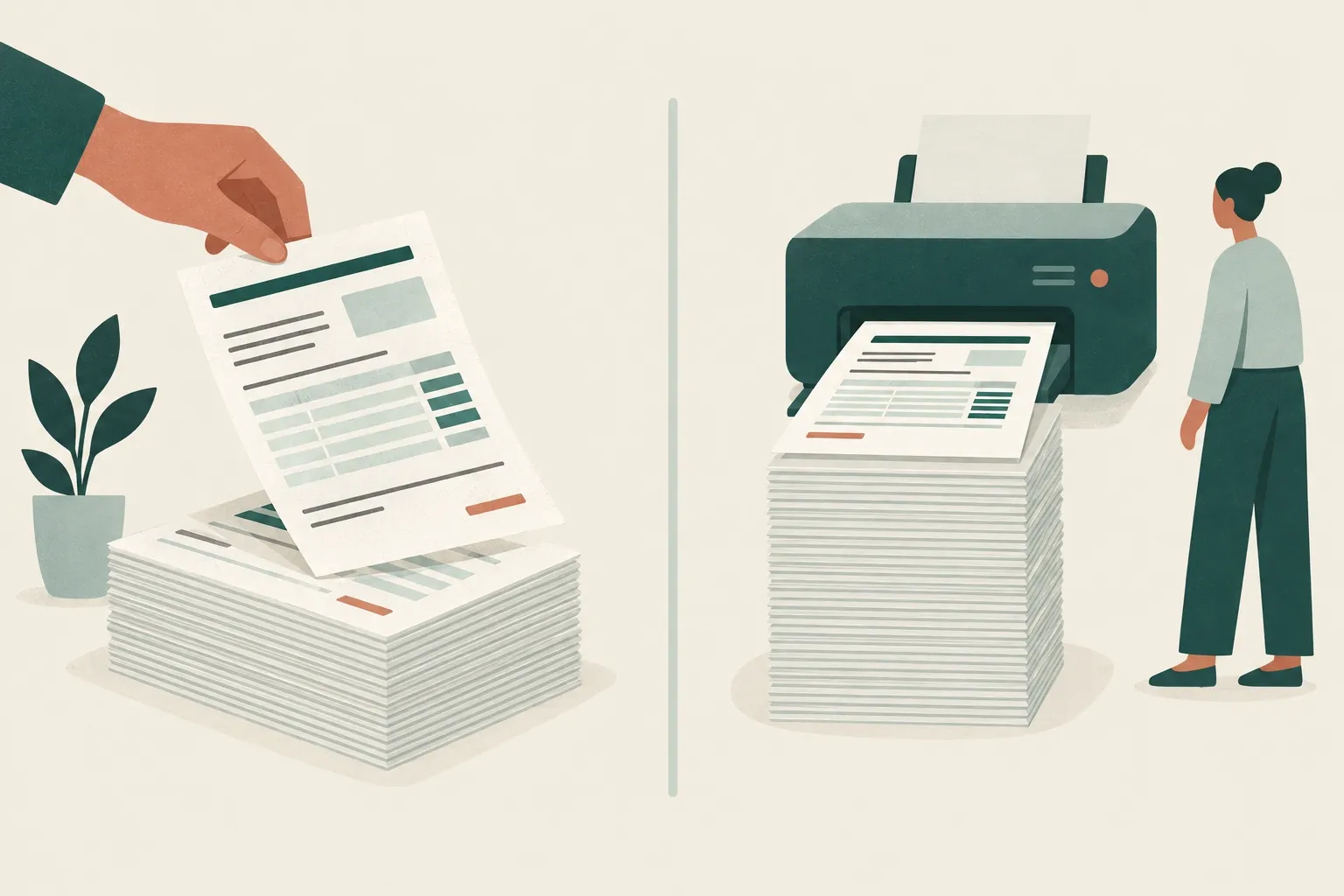
You have two options from the review dialog.
| Load one client | Print all | |
|---|---|---|
| What it does | Opens one client’s sessions in the editor | Produces one superbill per client in a single print job |
| Best for | Reviewing, editing, adding notes or a signature | Monthly batches when the data is already clean |
| Provider details | Your saved details, editable | Your saved details |
| Output | One superbill, printed or saved as PDF | One combined PDF with a superbill for each client |
Loading one client puts their service lines, diagnoses, and insurance details into the editor with a live preview. The checklist flags missing fields insurers usually require, such as a missing diagnosis pointer or member ID. You can add a typed signature and notes before printing.
Print all is the batch option. It’s fastest when your export is complete and your provider details are already saved.
Step 5: Save as PDF and deliver
Both options open your browser’s print dialog. Choose Save as PDF as the destination and keep the paper size at US Letter.
Print all produces one combined PDF. That works well for your own records or for printing paper copies. To email or upload each client’s superbill separately, either load each client and save them one at a time, or split the combined PDF with a PDF tool. Send superbills through whatever secure delivery method your practice already uses for client documents.
Is my client data uploaded?
No. The CSV is parsed in your browser, and the generator stores your data in your browser’s local storage on that device. Nothing goes to a server.
Two related tools in the toolbar:
- Export CSV downloads the service lines of the superbill you’re currently viewing.
- Backup (JSON) saves everything, including provider details and superbills, to a file you can re-import later or on another computer.
Because data lives in the browser, use a device you control. On a shared computer, consider clearing the site’s data when you’re done.
Troubleshooting CSV imports
| Problem | Likely cause | Fix |
|---|---|---|
| Dates are blank or wrong | Unsupported date format | Use YYYY-MM-DD, MM/DD/YYYY, or M/D/YY. Times after the date are ignored. If your export uses day-first dates, convert them to YYYY-MM-DD so day and month aren’t swapped. |
| Fees are blank | Fee column not matched, or cells contain text | Map the column to Fee in the review dialog. $ signs and commas are fine, but cells must contain an amount. |
| CPT codes missing | Header not recognized, or export has no code column | Map the right column to CPT in the review dialog. If your export has no codes, add a “CPT Code” column in a spreadsheet, or fill codes in the editor after loading one client. |
| Fees look too low | The fee column holds line totals | A line total is divided by units, so a 4-unit line with a $200 total becomes a $50 unit fee. Confirm the units column is correct and that unit fee times units equals the line amount in the preview. |
| Only one diagnosis shows | Codes in separate columns, or an unusual separator | Put all codes for a row in one cell, separated by commas, semicolons, or spaces. If you use commas inside a CSV cell, the cell must be quoted, which spreadsheet apps do automatically. A superbill holds up to 12 diagnoses, A through L. |
| Pointers look wrong | A pointer column conflicts with the codes | If your file has a Dx Pointer column, check that its letters match the diagnosis order. Otherwise, leave it out and let pointers be set automatically. |
| A client is split in two | Name spelled differently across rows | Make every row for a client use the same spelling, or use consistent First Name and Last Name columns. |
| Amount paid missing | Header not recognized | Rename the column to “Amount Paid” or map it in the review dialog. |
When in doubt, start from the downloaded CSV template and paste your data into its columns. That guarantees every header is recognized.
A simple monthly routine
- Save your provider details in the generator once.
- At the start of each month, export last month’s sessions for out-of-network clients.
- Click Import CSV, review the mappings, and check the client list.
- Spot-check one or two clients by loading them into the editor.
- Use Print all and save the PDF, or save each client separately.
- Send each client their superbill and keep a copy for your records.
Try it with your next export
Open the free superbill generator, click Import CSV, and use your last month’s export or the downloadable template. You’ll see every column match before anything is printed, and your client data never leaves your browser.
FAQ
Can I create superbills from a CSV export of my EHR appointments?
Yes. Export your appointments or billing transactions to CSV or TSV, click Import CSV in the generator, and confirm how the columns were matched. You can then load one client into the editor or use Print all to produce a superbill for every client in the file.
Is my client data uploaded when I import a CSV?
No. The file is parsed in your browser and nothing is uploaded to a server. Your provider details and superbills stay in your browser's local storage on that device.
What columns do I need in my CSV for a superbill?
At minimum, include a client name, date of service, CPT code, and fee for each row. Diagnosis codes, place of service, units, amount paid, date of birth, and insurance details make the superbill complete. The Download CSV template button gives you a file with all the recognized columns already set up.
Can I create superbills for all my clients at once?
Yes. After importing, choose Print all to create one superbill per client in a single print job, which you can save as one PDF. It uses the provider details you have saved in the generator.
What date formats does the CSV import accept?
Dates can be written as YYYY-MM-DD, MM/DD/YYYY, or M/D/YY. Any time that follows the date in the same cell is ignored, so exports that include appointment times work as is.